

Troubleshooting
Nexa Vape Blinking? Screen, Lights and Warnings Explained
Sep
Nexa Vape Blinking? Screen, Lights and Warnings Explained
A Nexa vape blinking at you can feel alarming, but it usually signals something simple.
Most flashing comes down to battery, puff length, charging or a pod that needs a firmer seat.
This guide explains what each screen shows, which light activity is normal, and what to do when something looks wrong.
One honest note first. The brand’s product pages do not publish a full chart of flash codes.
So we stick to what the screens show and to common causes on screen disposables. Check your box card too.
What Each Nexa Screen Shows
Every current model has a display. However, each one shows slightly different information.
Nexa Ultra II 50K
- A 3D curved display with light and dark mode.
- Dark mode switches on with a three-second press and hold.
- Also, the 16 mL crystal tank shows your e-liquid level, so you read that by eye.
- Normal mode gives up to 50,000 puffs, while Turbo gives about 30,000.
Shop the full lineup on our Nexa Ultra II page.
Nexa Pix 35K
- An HD screen shows battery and mode at a glance.
- Dual mode gives you Normal or Turbo power.
- Then the 11 mL crystal tank shows your e-liquid level.
See every flavor on our Nexa Pix page.
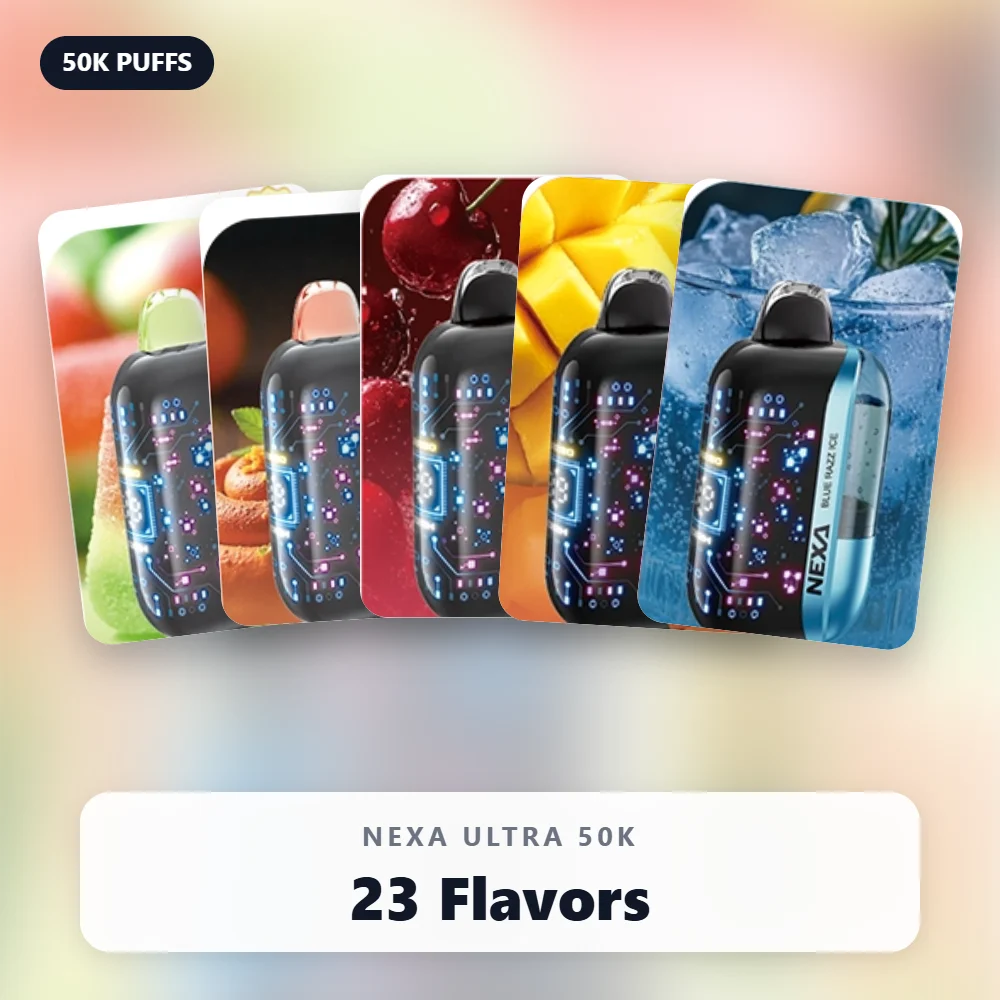
Nexa Ultra 50K
- A 3D curved screen keeps track of battery and mode.
- The brand also describes the screen adding a glowing touch to every puff.
- So light activity while you inhale is part of the design, not a fault.
Nexa Ultra InvisaCloud
- It runs flashing lights during normal use.
- However, dark mode turns those flashing lights off for extra discretion.
- Check the manual in your box for the exact control on this model.
Nexa Flex Kit
- A 3D curved screen shows your settings.
- The device detects Cool Pods and Visible Pods and adjusts itself.
- With a Cool Pod, you choose from four coolness levels.
- Also, the brand says the screen’s design moves in sync with every puff.
What a Nexa Vape Blinking Usually Means
Flashing falls into two groups: normal animation and a request for attention.
First, normal animation. Several models light up or animate while you puff. You can expect that.
Second, a request for attention. Here, the lights flash when you are not puffing, or the device refuses to fire.
So ask one question first: does the flashing happen only while I inhale?
If yes, it is likely the normal display. If no, work through the common causes below.
Common Causes of Nexa Flashing
These causes apply to most screen disposables. They are the first things any vape shop checks.
1. Low Battery
A low battery is the most common reason any disposable starts flashing.
Vaping360 calls a dead battery the most common reason for a flashing light on disposables.
So check the battery indicator on the screen, then charge with a USB-C cable.
The Ultra II carries a 900 mAh battery. Meanwhile, the Pix, Ultra and InvisaCloud each carry 800 mAh.
The Flex device uses a 1200 mAh battery, and its pods need no charging at all.
2. A Draw That Runs Too Long
Many devices limit how long they fire in one go. This protects the coil from overheating.
So if you hold a very long draw, the device may stop and flash.
Release, wait a few seconds, then take a shorter puff. If you keep pulling, the flashing usually continues.
3. Charging Activity
Many screens animate or flash while the battery charges. That is a status display, not a fault.
Still, watch for a battery level that never climbs. That points to a cable, adapter or port issue.
4. A Loose or Unseated Flex Pod
The Flex detects each pod type and sets itself up. A pod that sits loosely can interrupt that.
So remove the pod, reinsert it until it sits firmly, and let the device detect it again.
Our Flex pod and coolness guide walks through a clean pod swap.
5. Juicy Lock Not Activated
On the Ultra II and Pix, Juicy Lock keeps the e-liquid sealed until you activate the device.
A device that has power but no e-liquid at the coil can behave oddly or give no vapor.
So press the Ultra II tank and body together until they click, or snap the Pix tank in.
Then wait about a minute on the Ultra II so the wick can soak.
6. Moisture or Damage
E-liquid or condensation near the electronics can cause erratic lights.
Also, a drop can loosen internal parts. In both cases, stop using the device and contact your seller.
Vaping360 also advises against taking a device apart, since that can void a return.
Nexa Flashing Lights: What You See and What to Try
Use this table as a quick reference. It covers common situations on screen disposables, not official error codes.
| What you see | Common cause | What to try |
|---|---|---|
| Lights animate only while you puff | Normal display activity | Nothing; enjoy the device |
| Flashing plus no vapor, low battery icon | Low or flat battery | Charge with a USB-C cable |
| Flashing after a very long draw | Puff-time limit | Release, wait, take a shorter puff |
| Animation while plugged in | Charging status | Leave it until the indicator shows full |
| Battery level never rises on charge | Cable, adapter or port issue | Try another cable and wall adapter |
| Odd behavior after a Flex pod swap | Pod not seated firmly | Reseat the pod and let it detect |
| Power but no vapor on a new Ultra II or Pix | Juicy Lock not activated | Click the tank into place, then wait |
| Erratic lights after a drop or leak | Moisture or damage | Stop using it and contact your seller |
| Screen dark, device still fires | Dark mode is on | Switch back to light mode per your manual |
Step by Step: When Nexa Lights Flash
Follow this order. It moves from the most likely cause to the least likely.
- First, stop puffing and watch the screen for a few seconds.
- Next, check the battery indicator and charge if it looks low.
- Then confirm Juicy Lock activation on an Ultra II or Pix.
- After that, reseat the pod if you use a Flex.
- Take one short, gentle puff to test.
- Also, check the crystal tank or pod for remaining e-liquid.
- Finally, contact your seller if the flashing continues with no clear cause.
Most devices return to normal after step two or three. So start there before you worry.
Nexa Dark Mode and Light Mode
Dark mode often confuses new owners. A dim or dark screen can look like a dead device.
Nexa Ultra II Dark Mode
The Ultra II offers light mode and dark mode on its 3D curved display.
To switch dark mode on, press and hold for three seconds.
So if your screen suddenly looks darker, you may have pressed and held by accident.
The product page only covers turning dark mode on.
So check your manual card for the way back to light mode.
Nexa InvisaCloud Dark Mode
On the InvisaCloud, dark mode turns off the flashing lights.
That pairs well with its cloud-free mode, where a slow, deep inhale leaves almost no visible vapor.
As a result, a quiet, dark InvisaCloud may be behaving exactly as you set it.
Learn more in our InvisaCloud explainer or shop the Nexa InvisaCloud range.
When the Nexa Screen Shows Nothing
A blank screen is a different problem from flashing. Still, the causes overlap.
- Dark mode may be on. Try the dark mode control first.
- The battery may be completely flat. So charge it before you judge.
- A new device may still have its stickers covering the screen.
- Also, a damaged cable may not deliver any power at all.
If the device fires but the screen stays blank, the display itself may have an issue. Contact your seller then.
When the device neither fires nor lights up after charging, read our no-hit troubleshooting guide.
Charging and the Nexa Screen Battery Indicator
Every current model charges through USB-C. So any standard USB-C cable should do the job.
How Long Charging Takes
The brand’s product pages do not list an official charge time for these models.
As a general rule for disposables, Vaping360 puts it at about 45 to 60 minutes.
Treat that only as a rough guide. Instead of a timer, watch your battery indicator.
Charging Tips
- Use a wall adapter or computer port you trust.
- Charge on a hard, cool surface, never on a bed or couch.
- Check the port for lint if the connection feels loose.
- Also, unplug once the indicator shows full.
Need a spare cable? We stock a USB-C charging cable for Nexa devices.
For a full walkthrough, read how to charge your Nexa.
Modes on the Nexa Screen: Normal, Turbo and Coolness
The screen also tells you which power mode you use. That matters for puff count and taste.
- Ultra II, Ultra and InvisaCloud: up to 50,000 puffs in Normal, about 30,000 in Turbo.
- Pix: up to 35,000 in Normal, about 20,000 in Turbo.
- Flex Cool Pod: up to 30,000 in Normal, about 18,000 in Turbo.
- Flex Visible Pod: up to 40,000 in Normal, about 25,000 in Turbo.
Turbo gives a stronger hit. However, it also pushes more heat through the coil.
So if long Turbo sessions trigger flashing or a hot taste, switch back to Normal for a while.
On the Flex, the screen also shows your coolness setting. Cool Pods offer four levels.
Compare models side by side on our comparison hub.
Nexa Warning Signs That Mean Stop
Most flashing is harmless. Still, a few signs mean you should stop using the device right away.
- The body feels hot when you are not puffing.
- You notice a burning or chemical smell from the device.
- The casing looks swollen, cracked or bent.
- E-liquid leaks from the charging port.
- Lights flash nonstop, even unplugged and untouched.
In any of these cases, unplug it and set it on a hard surface away from anything flammable.
Then contact your seller with photos and your order number.
Afterward, recycle the device at a battery drop-off point, not in household trash.
Flashing Right Out of the Box
A brand-new device that flashes before you ever vape it usually needs setup, not a refund.
- First, peel off every protective sticker, including any film over the screen.
- Next, remove the silicone plugs from the mouthpiece and, on the Ultra II, the tank.
- Then activate Juicy Lock on an Ultra II or Pix until the tank clicks.
- After that, give it a short charge in case the battery dipped in storage.
- Finally, wait about a minute and take a gentle first puff.
However, a new device with e-liquid pooled inside the box is different.
Vaping360 notes that a leak during shipping can affect a brand-new device.
In that case, return it to your seller with the original packaging.
Setup Guides by Model
- Read how to use the Ultra II for the full activation routine.
- Also, see our Pix Juicy Lock activation guide.
- For the technology behind both, read our Juicy Lock and Crystal Tank explainer.
Empty Tank or Flat Battery?
Both problems can look the same: flashing lights and weak or missing vapor. Luckily, you can tell them apart quickly.
Check the E-Liquid First
The Ultra II, Pix and Ultra all use a crystal tank. So hold the device up to the light.
If the tank looks nearly empty and the taste has faded, the e-liquid is the likely issue.
On the Flex, the Visible Pod has a see-through tank. That makes the check just as easy.
Then Check the Battery
If the tank still holds plenty of e-liquid, plug the device in.
When the screen responds and the battery level climbs, power was the problem all along.
But when the tank is empty and the battery is full, the device has finished its life.
Flex owners only swap the pod. Shop fresh ones in our Nexa Flex Pods range.
Heat, Cold and Nexa Lights
Temperature affects every battery-powered gadget. Your vape is no exception.
- In cold weather, batteries in general deliver less power, so low-battery warnings can appear sooner.
- Warm the device in an inside pocket for a few minutes, then try again.
- Meanwhile, heat raises the risk of leaks and stresses the battery.
- So keep devices away from heat, such as a hot car or direct sun.
- Also, store them upright, mouthpiece facing up.
A device that flashes only in extreme temperatures often behaves normally once it returns to room temperature.
Habits That Reduce Flashing
A few simple habits keep warnings rare. They also help each device reach closer to its rated puff count.
- Charge before the battery runs completely flat.
- Use Normal mode as your everyday setting.
- Keep each draw smooth and moderate in length.
- Pause for a few seconds between puffs.
- Seat Flex pods firmly every time you swap.
- Carry a spare USB-C cable in your bag.
A silicone sleeve for Nexa also protects the screen from scratches and drops.
Before You Contact Support
A little detective work speeds up any return. So note these points before you reach out.
- When does the flashing happen: while puffing, charging or sitting idle?
- Does the device still fire, and does it still produce vapor?
- What does the battery indicator show after an hour on the charger?
- Also, how much e-liquid remains in the tank or pod?
- Did the device take a drop, get wet or sit somewhere hot?
Next, record a short video of the lights. It explains the pattern far better than words.
Then send it with your order number. As a result, your seller can judge the problem quickly.
Is It a Genuine Nexa Screen?
Counterfeit devices often copy the look but skip the real electronics.
So a screen that shows nothing useful, or behaves strangely from day one, deserves a code check.
Scratch the authentication sticker and enter the code on the official verification page.
Then read our counterfeit spotting guide or our verify authentic Nexa page.
Frequently Asked Questions
Is a Nexa vape blinking while charging normal?
Often, yes. Many screens animate while the battery charges.
However, if the battery level never rises, try a different cable and adapter.
Why does my Nexa screen light up when I puff?
Several models animate during each puff by design. For example, the Ultra screen adds a glow to every puff.
How do I turn on dark mode on the Ultra II?
Press and hold for three seconds. Then check your manual card for switching back to light mode.
Why did my Nexa flash and stop firing mid-puff?
You probably held the draw too long. So release, wait a few seconds, and take a shorter puff.
Why does my InvisaCloud show no lights at all?
Dark mode is the likely reason. On this model, it turns off the flashing lights for discretion.
So if it still fires and makes vapor, nothing is wrong.
Where can I find the flash codes for my model?
Check the instruction card in your box first. The brand’s product pages do not list a full code chart.
Also, you can email the brand at support@nexabar.com with your model and a short video.
Shop With Confidence
A Nexa vape blinking rarely means a dead device, so check battery, puff length, activation and pod seating first.
When it is time for a fresh device, browse our full Nexa disposable vape collection.
Prefer a reusable setup? The Nexa Flex Kit range lets you swap pods instead of devices.
At nexabarofficail.com, we are an independent retailer. We ship only to adults 21+, in plain, discreet packaging.
WARNING: This product contains nicotine. Nicotine is an addictive chemical.
